



Password Reset Procedures
This document is for the self-service password reset for your Diné College account. Following these instructions will allow you to complete password reset on their own without the need to submit an IT ticket or call the Help Desk. Please follow the instructions carefully.
Need help? Contact the Diné College IT Department at 928-724-6675.Step 1: Navigate to ‘MyDCPortal’.
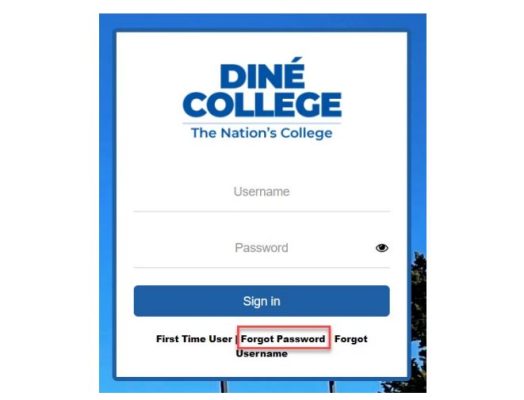
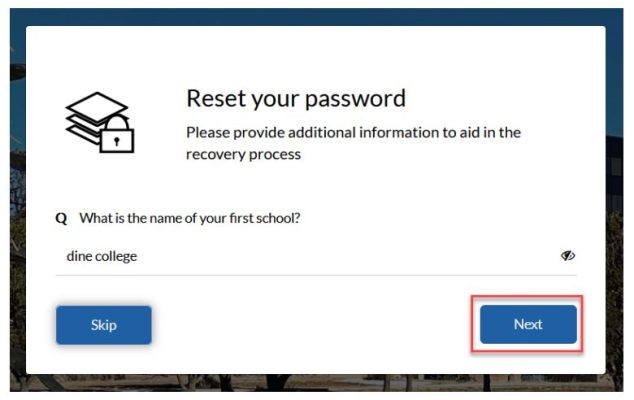
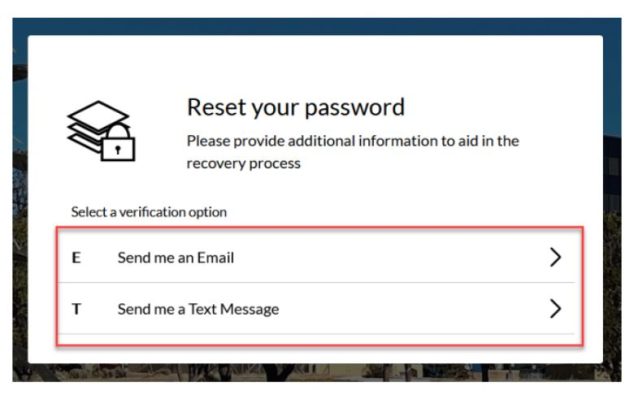
Step 2: Click on the Forgot Password Step 4: Answer the security questions that were setup in your Account Recovery Settings.
Step 6: It will prompt you to change your password for your Diné College account.
Password Requirements
Your new password must meet the following security requirements:
Be between 12 and 24 characters long.
Meet at least 3 of these 4 criteria:
Lowercase letters (a–z)
Uppercase letters (A–Z)
Numbers (0–9)
Special characters (!@#$%^&*, etc.)
Cannot be the same as your Warrior ID number.
Cannot contain your first or last name.
Cannot contain spaces.
Cannot contain easily identifiable or decipherable words.
Password Expiration
Passwords must be reset every 120 days.
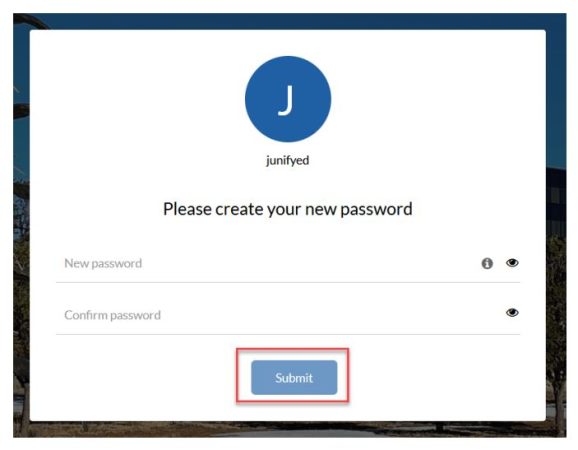
Step 7: Enter in the new password and click Submit.
Step 8: It should now notify you that your password was changed successfully.
Step 9: DONE.