
This document guides you through the process on how to log into Canvas LMS through your MyDCPortal.
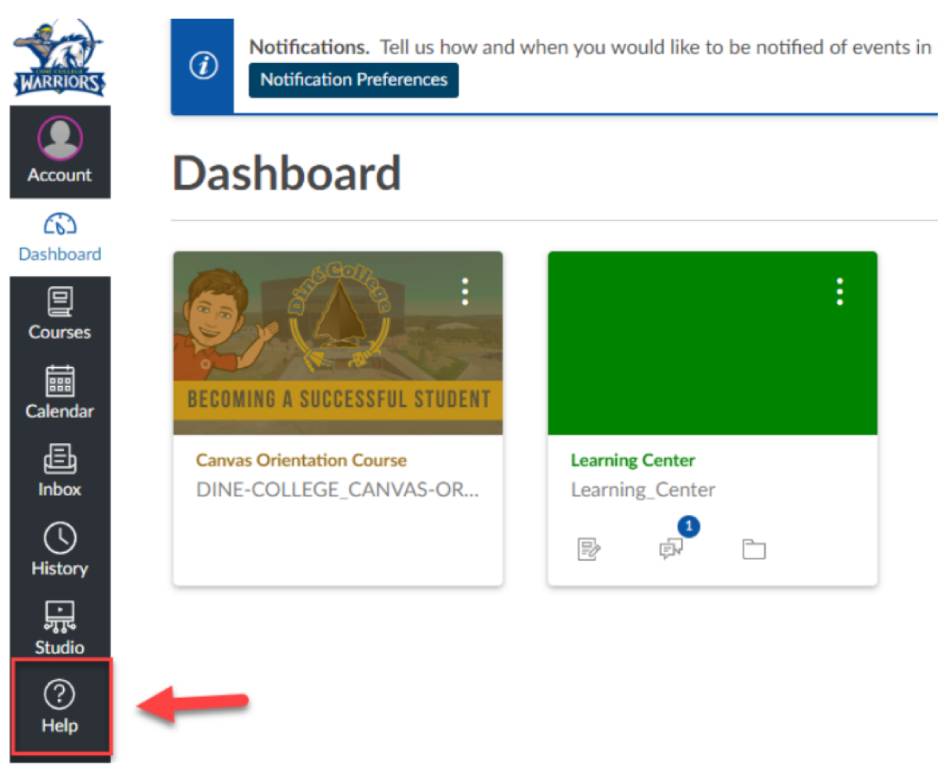
Step 1: While logged into Canvas LMS, click on the Help icon located in the left navigation menu.
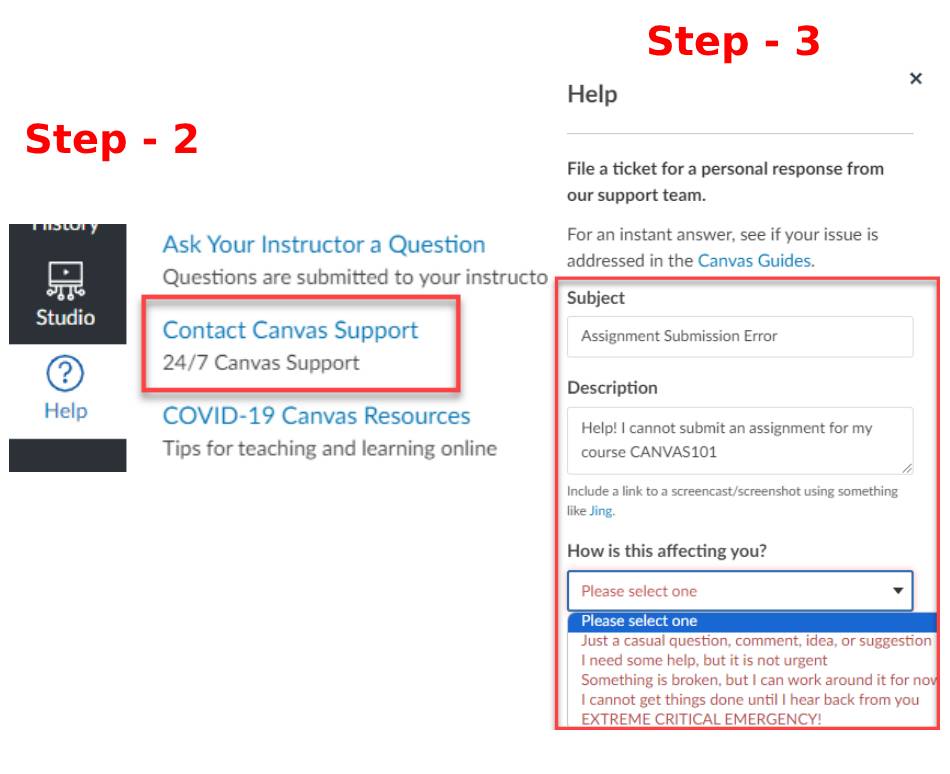
Step 2: Click on Contact Canvas Support.
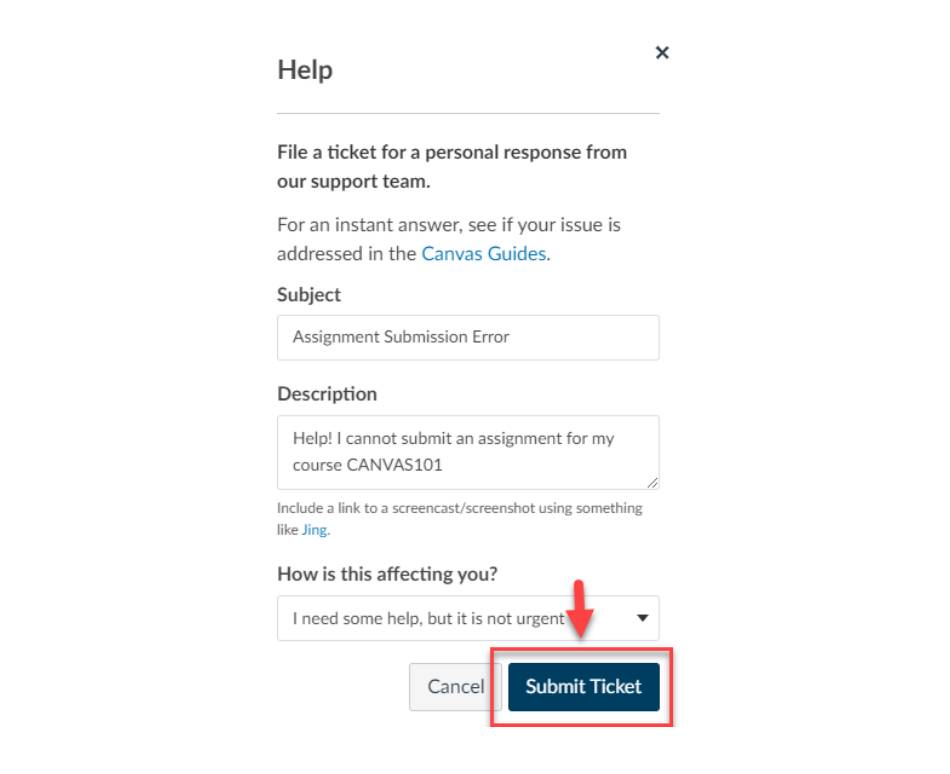
Step 3: Fill out the required information for Subject, Description, and How is this affecting you? sections of the form. Provide DETAILED information on your issue(s) in the description field so that Canvas support can better assist you. Step 4: Once you are done filling out all areas, click on Submit Ticket.
Allow up to 24 hours for a Canvas support representative to respond to your submitted ticket. They will be in communication by email. This resource is available outside of college business hours (8am-5pm Monday-Friday).
IT-Help Desk
Office Hours:
Monday – Friday: 8 a.m. – 5 p.m.
Closed during Lunch: 12 p.m. – 1 p.m.
Phone Support: 928-724-6675